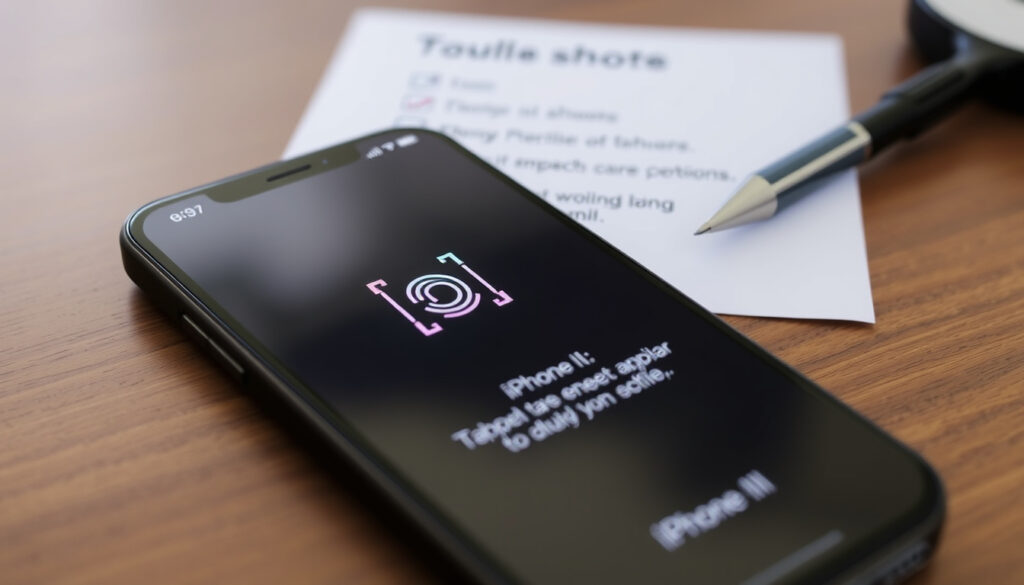
Face ID Not Working on iPhone? Step-by-Step Troubleshooting Guide
Few things are more frustrating than glancing at your iPhone, expecting it to unlock instantly, and being met with that tiny “Face ID requires your passcode” message. The system that usually takes a split second to recognize you has suddenly stopped cooperating. Whether you’ve got an iPhone 11 or a brand-new 15 Pro Max, this guide walks through the most common reasons Face ID fails and the concrete fixes that actually work, backed by Apple’s own documentation.
Face ID introduced with iPhone X in 2017: over 30,000 infrared dots projected ·
iPhone models with Face ID: X, XR, XS, 11, 12, 13, 14, 15, SE (3rd gen) ·
Common cause: obstructed TrueDepth camera: most frequent single issue ·
Face ID works in complete darkness: uses infrared, not visible light
Quick snapshot
- Face ID disabled after five side button presses (Apple Support)
- iOS updates can cause temporary Face ID issues (Apple Support)
- Reset Face ID available in Settings (Apple Support: If Face ID isn’t working on your iPhone or iPad Pro)
- Whether a specific iOS version caused widespread Face ID failures (rare, but not documented)
- Exact failure rate of TrueDepth camera hardware
- Face ID launched 2017 with iPhone X (Apple)
- Face ID with mask arrives in iOS 15.4 (Apple Support)
- Try restart, update, and reset before seeking service
- Apple Store can diagnose TrueDepth issues if hardware is suspected
| Label | Value |
|---|---|
| First iPhone with Face ID | iPhone X (2017) |
| Components in TrueDepth camera | Infrared camera, dot projector, flood illuminator |
| Number of dots projected | Over 30,000 |
| Face ID accuracy | 1 in 1,000,000 false positive rate |
| Supported iPhone models | X, XR, XS, 11, 12, 13, 14, 15, SE (3rd gen) |
Why has Face ID suddenly stopped working?
Common software triggers
- A recent iOS update sometimes resets Face ID configuration or introduces firmware bugs. According to Apple Support, installing the latest iOS version can resolve these issues.
- Going through Settings > Face ID & Passcode and confirming the features you want are turned on is a key step recommended by Apple’s official guide.
- Restarting the iPhone is advised as the first troubleshooting step by Apple Support.
Physical obstructions and environmental factors
- The most frequent single cause: something blocking the TrueDepth camera. Apple Support says to check that the camera is unobstructed and clean.
- Sunglasses can block the infrared light used by the TrueDepth system, according to Apple’s troubleshooting page.
- Screen protectors with cutouts can cover the sensors. Apple confirms any covering over the camera area will block Face ID.
Hardware failure indicators
- If Face ID is grayed out in Settings, that often signals a hardware issue. Apple Support: If Face ID isn’t working after an iPhone display replacement notes that damage can make the system unavailable.
- Water damage or a dropped iPhone can affect the TrueDepth camera sensor array.
- Apple’s repair guidance explains that TrueDepth components are tightly paired to the device, so unauthorized repairs may break Face ID permanently.
The trade-off: software fixes are free and fast, but hardware faults require an Apple Store visit — and no home repair shortcut exists.
An iPhone owner with a recent screen replacement may lose Face ID permanently if the repair wasn’t done by an Apple Authorized Service Provider, because the TrueDepth camera is paired to the original display controller at the factory.
How to fix Face ID issue on iPhone?
Quick checks before troubleshooting
- Make sure your face is completely visible — eyes, nose, and mouth. Apple warns that partial coverage can prevent recognition.
- Hold the iPhone at arm’s length, about 10-20 inches from your face. Apple’s support article says positioning too far or too close can fail.
- Remove any case, screen protector, or film covering the TrueDepth camera area at the top of the display.
Restart and update your iPhone
- Restarting your iPhone can clear temporary system glitches affecting Face ID. Apple Support lists this as the first step.
- Apple’s official instructions also recommend updating to the latest iOS version, as updates often include Face ID bug fixes.
Reset Face ID and set up again
- Apple’s user guide says users can reset Face ID by opening Settings, choosing Face ID & Passcode, entering the passcode, and tapping Reset Face ID.
- After resetting, set up Face ID again holding the iPhone in portrait orientation, positioning your face in the frame, and gently rotating your head to complete the scan.
Model-specific adjustments (iPhone 11, 12, 13, 15)
- iPhone 11 and earlier: Face ID requires a clear, unobstructed view of the full face. No mask support.
- iPhone 12 and later: These models support Face ID with a mask when running iOS 15.4 or later, according to Apple Support: Use Face ID with a mask on iPhone.
- iPhone 13 and 15 series: The TrueDepth camera sits in a smaller notch (or Dynamic Island on the 15 Pro models). Users sometimes angle the phone differently, which may affect recognition if attention-awareness is enabled.
The implication: model-level quirks matter. An iPhone 15 owner who upgraded from an SE may be holding the phone too close out of habit, causing repeated Face ID failures.
An iPhone 13 owner troubleshooting Face ID should verify that iOS 15.4 or later is installed to use mask-unlock, then check attention-awareness settings — two steps that resolve most user-level complaints without a reset.
Why is my phone not unlocking with Face Recognition?
Face ID vs. Face Recognition on Android
- Apple’s Face ID uses a TrueDepth camera projecting over 30,000 infrared dots to create a depth map, achieving a 1 in 1,000,000 false positive rate. Apple introduced this with the iPhone X.
- Many Android Face Recognition systems use the front-facing camera only, which is less secure. Apple’s security documentation notes that Face ID is designed with attention-awareness to prevent unlocking by a photo or video.
Attention-awareness requirements
- Face ID requires you to look at the iPhone with eyes open, unless attention-awareness is turned off.
- Apple’s support page says that if you wear sunglasses that block infrared, Face ID won’t unlock even if you are looking at the phone.
Screen protector and accessory interference
- Any screen protector with a solid cutout around the TrueDepth camera can block the dot projector or infrared camera.
- Apple’s official guidance lists masked or partially obstructed face as a common failure trigger.
What disables Face ID on iPhone?
Temporary disable actions
- Pressing the side button five times in rapid succession places the iPhone in Emergency SOS mode and disables Face ID until you enter the passcode.
- Restarting the iPhone requires passcode entry — Face ID won’t work after a reboot, per Apple’s support documentation.
Settings that turn off Face ID
- Going to Settings > Face ID & Passcode and toggling off “iPhone Unlock” or “iTunes & App Store” disables Face ID for those functions.
- Face ID is grayed out entirely after certain device repairs or unauthorized service, according to Apple Support: If Face ID isn’t working after an iPhone display replacement.
System events that deactivate Face ID
- Lost or stolen mode disables Face ID, forcing passcode unlock.
- After a device update, Face ID may require passcode entry once. Apple’s official notes confirm this is normal behavior.
How do I restore my Face ID on my iPhone?
Step-by-step reset in Settings
- Open Settings, tap Face ID & Passcode, enter your passcode.
- Tap Reset Face ID to wipe the existing face data.
- Then tap “Set Up Face ID” and follow the on-screen prompts — gently rotate your head to complete both scans.
Setting up Face ID again
- Hold the iPhone about 10-20 inches from your face, in portrait orientation.
- Make sure your full face is visible: no mask, sunglasses, or scarf covering the lower part of the face.
- If you need mask support, enable “Face ID with a mask” under Settings > Face ID & Passcode (requires iOS 15.4+ and iPhone 12+).
When to contact Apple Support
- If Face ID is grayed out in Settings, that typically indicates a hardware fault. Apple’s repair page advises visiting an Apple Store or Apple Authorized Service Provider.
- If Face ID stopped working after a screen replacement at a third-party shop, the TrueDepth camera may have been damaged or the display may not be calibrated properly.
- Apple Support can run a hardware diagnostic on the TrueDepth camera at no charge during a Genius Bar appointment.
The pattern: most Face ID problems are software or obstruction-related and fixable in under 10 minutes. When the option is grayed out, the only path is a service appointment — and that may come with a repair cost if the device is out of warranty.
An iPhone owner with a third-party screen replacement may discover that Face ID remains permanently disabled because the TrueDepth camera system requires Apple-specific calibration tools that independent repair shops don’t have.
Make sure your eyes, nose and mouth are fully visible to the TrueDepth camera.
— Apple Support (official iPhone user guide)
Try resetting Face ID by opening Settings, choosing Face ID & Passcode, entering your passcode and tapping Reset Face ID.
For an iPhone user dealing with a persistent Face ID failure, the decision path is straightforward: try the free software steps first — restart, update, and reset — which resolve the majority of cases. If the option is grayed out or Face ID remains unavailable after those steps, the TrueDepth camera likely has a hardware fault that only Apple can fix. The takeaway: don’t attempt a DIY camera repair; you’ll likely make it worse, and Apple won’t service a device with unauthorized modifications.
owlrepairs.com, salvagedata.com, discussions.apple.com, youtube.com, youtube.com
Frequently asked questions
Does Face ID work with sunglasses?
Some sunglasses block the infrared light used by the TrueDepth camera. Apple says if Face ID fails with sunglasses, try taking them off or switching to a pair that doesn’t filter infrared.
Can Face ID be used in the dark?
Yes. Face ID uses infrared projection and an infrared camera — it works in complete darkness because it doesn’t rely on visible light.
Does Face ID work with a mask?
Face ID with a mask is supported on iPhone 12 and later models with iOS 15.4 or later, according to Apple Support. Users must enable the feature in Settings.
How many times can Face ID fail before requiring a passcode?
After five unsuccessful Face ID attempts, the iPhone requires your passcode to unlock. Apple confirms this is a security measure.
Can a screen protector interfere with Face ID?
Yes. A screen protector with a cutout that covers any part of the TrueDepth camera, or a full-coverage protector that blocks the sensors, will prevent Face ID from functioning. Apple recommends removing any covering over the camera area.
Is Face ID more secure than Touch ID?
Face ID has a 1 in 1,000,000 false positive rate, while Touch ID has a 1 in 50,000 rate. Apple says Face ID is the more secure option.
What should I do if Face ID is grayed out in Settings?
A grayed-out Face ID option typically indicates a hardware fault. Apple advises contacting Apple Support or visiting an Apple Store for diagnosis.
Will Face ID still work after a screen replacement?
Only if the replacement was done by Apple or an Apple Authorized Service Provider. Apple explains that the TrueDepth camera is paired to the original display controller, so third-party repairs often disable Face ID.
More related posts
 Song Hye-kyo Relationship Status: Husband, Exes, and Dating History
 Edward Woodward: The Equalizer Star, Career & Death
 Do Eyelashes Grow Back – Timeline, Causes and Recovery Tips
 Callum Wilson: Stats, Clubs, Age, Wife, and Career
 Lewis Miley: Newcastle United Midfielder Injury & Stats
 Stephen Bear: Relationships, Conviction, and Net Worth