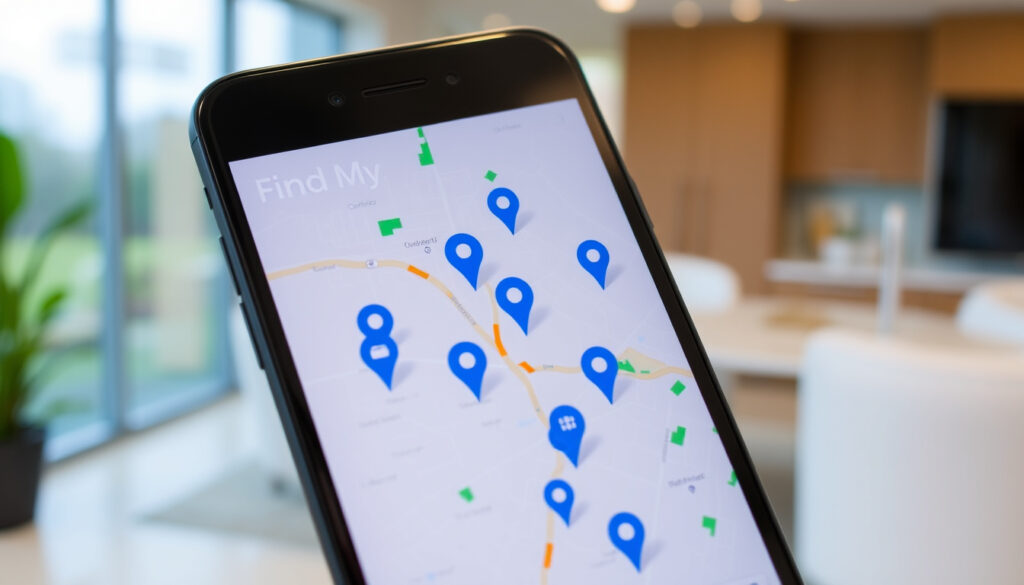
Find My: How to Turn On, Track Devices, and Locate Friends
Lost your iPhone? It’s one of those stomach-drop moments everyone dreads. This guide walks you through everything Apple’s Find My system can do—from locating a misplaced device to sharing your location with family—while cutting through the confusion about privacy and unauthorized tracking.
Apple devices supported: iPhone, iPad, iPod touch, Mac, Apple Watch, AirPods, AirTag ·
Global Find My network size: Hundreds of millions of Apple devices ·
Lost Mode activation: Locks device with passcode and displays contact info ·
Offline finding: Uses Bluetooth and nearby devices
Quick snapshot
- Find My requires explicit consent for people tracking (Apple Support)
- Lost Mode locks the device and displays a custom message (Apple Support)
- Activation Lock prevents unauthorized erasure (Apple Support)
- Exact number of devices in the Find My network is not publicly disclosed by Apple
- Third-party accessory integration details vary per manufacturer
- 2010: Find My iPhone launched with MobileMe (Wikipedia)
- 2019: Rebranded as Find My with iOS 13 (Wikipedia)
- 2021: Find My network expanded to third-party accessories (Apple iCloud)
- Continued expansion of Find My network to more third-party items
- Ongoing privacy refinements in iOS updates
Four key facts define Find My’s evolution and reach:
| Fact | Value |
|---|---|
| First released | 2010 as Find My iPhone (Wikipedia) |
| Rebranded as Find My | 2019 with iOS 13 (Wikipedia) |
| Devices locatable | iPhone, iPad, iPod touch, Mac, Apple Watch, AirPods, AirTag, compatible third-party items (Apple iCloud) |
| Users | Over 1 billion active Apple devices (Apple Legal) |
How do I turn on Find My?
This is the first step anyone needs to take—before a device goes missing, not after. The setup takes about thirty seconds and unlocks every protective feature Find My offers.
Turn on Find My on iPhone or iPad
- Open Settings, tap your name at the top, then tap Find My (Apple Support).
- Toggle Find My [device] to on. Enabling this also turns on Activation Lock and Lost Mode.
- Confirm Location Services is turned on for full functionality (Apple Support Guide).
Turn on Find My on Mac
- Go to System Settings > your Apple ID > iCloud > Find My Mac and toggle it on.
- This enables the same protections—location tracking, Lost Mode, and Activation Lock—across your Mac.
Turning on Find My is free, automatic to maintain, and the single most effective thing any Apple device owner can do before losing their device. Without it, Activation Lock and Lost Mode don’t exist.
The implication: enabling Find My is a one-time action that creates a permanent safety net. Anyone who skips it forfeits Apple’s best recovery features.
How do I track someone on Find My?
Location sharing with another person requires mutual consent—no exceptions. This is where the system’s privacy architecture is most visible.
Add a friend to Find My
- Open the Find My app and tap the People tab (Apple Support).
- Tap Share My Location, then enter the person’s Apple ID email or phone number.
- Your friend gets an invitation and must accept it. Location sharing is two-way by default: they see you, you see them.
- Either party can stop sharing at any time.
Share your location with a friend
- From the People tab, tap a friend’s name to see their location on a map.
- You can also request someone’s location, but they must approve the request.
- Location sharing can be toggled off anytime from the same screen.
The pattern: every location-sharing transaction in Find My requires active, informed consent. There is no “silent” tracking mode built into the app (Apple iCloud).
How do I locate my lost iPhone?
This is the feature most people associate with Find My. The good news: it works even when the iPhone is offline or in power reserve mode.
Use the Find My app on another device
- Open the Find My app on any Apple device signed into your iCloud account.
- Tap the Devices tab and select your missing device. You’ll see its location on a map (Apple Support).
- Options: Play Sound (even if the device is on silent), Mark as Lost (locks the device with a custom message), or Erase This Device (permanently wipes your data).
Use iCloud.com/find
- Sign in to iCloud.com/find from any web browser.
- You’ll see all devices linked to your Apple ID. Select the lost one for the same options: location, Play Sound, Lost Mode, or Erase.
- This works from any computer, not just Apple hardware.
Marking a device as Lost is reversible only if you unlock it with your passcode. Erasing is permanent—you won’t be able to track it afterward. Apple recommends erasing only if you’ve given up hope of recovering the device (Apple Support).
The trade-off: Lost Mode preserves your ability to track and recover. Erase destroys that ability but protects your data from anyone who might find the device.
How do I locate a family member on my iPhone?
Family Sharing turns Find My into a household safety tool rather than just a personal one. Parents can see kids’ devices; spouses can check each other’s location in an emergency.
Set up Family Sharing for location
- The Family Sharing organizer enables location sharing from Settings > your name > Family Sharing > Location Sharing (Apple Support).
- Each family member must choose which device represents their location source. This isn’t automatic—you pick.
- Location Services must be on for every participating device (Apple Support Guide).
Use Find My to find a family member’s device
- Open Find My and tap the Devices tab. You’ll see every device owned by family members who share their location.
- Select any device to see its location, play a sound, or mark it as lost.
- Activation Lock remains: a family member cannot erase or reactivate a device without the owner’s Apple ID password (Apple Support).
Why this matters: Family Sharing turns Find My from a solo recovery tool into a collective safety net. For a parent with a teenager, that can be the difference between panicking and knowing they’re safe.
Can my partner track my iPhone without me knowing?
This question comes up constantly in Apple Communities and privacy forums. The short answer: no—not through Find My.
Signs that someone is tracking your iPhone
- Check Settings > your name > Find My > Find My [device]. If it’s on, you’ll see who you’re sharing your location with.
- Same check in Settings > Privacy > Location Services > System Services > Find My iPhone (Apple Support).
- The People tab in Find My shows every person who can see your location. If someone’s there whom you didn’t invite, you can stop sharing.
How to check location sharing settings
- Go to Settings > your name > Find My. The list under “Share My Location” shows every person with access.
- If you see someone unexpected, tap their name and select Stop Sharing My Location.
- Safety Check, available on iPhone with iOS 16 or later, lets you review and revoke all sharing at once (Apple Personal Safety User Guide).
Find My itself doesn’t enable stealth tracking. But other vectors exist—shared Apple ID credentials, third-party tracking apps, or physical access to a phone. Privacy-conscious users should enable Safety Check and review their Location Services permissions regularly (Apple Support).
The pattern: Find My is designed specifically to prevent hidden tracking. Apple’s privacy engineering means every location-sharing relationship is visible, reversible, and consensual (Apple Privacy Control).
What is the difference between Find My and Find My iPhone?
The naming confuses almost everyone. Here’s the short version: Find My iPhone was the original feature; Find My is the modern app that replaced it.
Find My app vs. Find My iPhone feature
- Find My iPhone launched in 2010 as a MobileMe feature, then iCloud (Wikipedia). It let you locate a lost iPhone only.
- Find My (2019, iOS 13) merged Find My iPhone and Find My Friends into one app. It now covers devices, people, AirTags, and third-party accessories.
- The phrase “Find My iPhone” still appears in system settings because that’s the toggle name. Apple hasn’t renamed the underlying feature, just the app.
Evolution from Find My iPhone to Find My
- 2010: Find My iPhone (MobileMe, paid subscription).
- 2011: Becomes free with iCloud.
- 2013: Activation Lock added with iOS 7.
- 2019: Find My app replaces both Find My iPhone and Find My Friends.
- 2021: Find My network opens to third-party accessories (Apple iCloud).
The implication: if someone says “Find My iPhone,” they’re usually referring to the entire system—or the toggle in Settings. If they say “Find My” (the app), they mean the full suite including people and items.
How do I reactivate Find My?
Maybe you turned it off to save battery or troubleshoot something. Reactivation is straightforward.
Re-enable Find My after turning it off
- Open Settings > your name > Find My.
- Toggle Find My [device] back on. Requires an internet connection and an active iCloud sign-in (Apple Support).
- If the toggle is grayed out and won’t move, check Screen Time > Content & Privacy Restrictions for a block on Location Services changes.
Fix Find My not working
- Confirm you’re signed into iCloud: Settings > your name. If you see “Sign in to iPhone,” do that first.
- Check Location Services: Settings > Privacy > Location Services must be on.
- Update iOS to the latest version. Find My features and safety controls depend on current iOS versions (Apple Support).
- Restart the device. A simple restart resolves many Find My activation issues.
The trade-off: reactivation is easy unless a policy—Screen Time or an MDM profile—blocks it. For most users, it’s a thirty-second fix. For parents managing kids’ devices, Screen Time restrictions can become the blocker.
How can I track my husband’s iPhone location?
This question appears frequently in search logs, and the ethical boundaries matter. Find My is not a surveillance tool—it requires mutual, informed consent.
Consensual location sharing in Find My
- Both parties must add each other in the Find My People tab and accept the invitations (Apple Support).
- Each person’s location becomes visible to the other on the map. Either can stop sharing at any time.
- There is no “hidden” location-sharing mode. Apple’s system is transparent by design (Apple Privacy Control).
Using Family Sharing for spouse device location
- If you’re in a Family Sharing group, family members can see each other’s devices in the Find My Devices tab.
- This does not require individual location-sharing invitations—Family Sharing is the authorization layer.
- Each person still chooses which device represents their location source (Apple Support).
Why this matters: Find My supports trust-based location sharing, not secret tracking. For a family, that’s a feature—it prevents misuse while enabling the legitimate safety uses most people want.
appleinsider.com, apple.com, support.apple.com, support.apple.com, wired.com, discussions.apple.com, support.apple.com, betnews.io
For a detailed walkthrough of tracking devices and people on iPhone, see the companion guide on Outback Watch.
Frequently asked questions
Can I find my iPhone if it’s turned off?
Yes, for up to 24 hours after shutdown if the device has battery reserve. The Find My network uses Bluetooth to detect the device’s last known location even when it’s powered off.
Does Find My work in other countries?
Yes. Find My works worldwide wherever an internet connection or Apple device is available. Location accuracy depends on local network coverage.
Can I remove a device from Find My?
Yes. Go to Settings > your name > Find My, tap the device, and select Remove This Device. This disables Activation Lock for that device.
What happens if I erase my iPhone via Find My?
The device is wiped remotely. After erasure, you can no longer track it using Find My. The device will show “Erased” in the Find My app.
How accurate is Find My location?
Location accuracy varies. In open areas with good GPS, it can be within a few meters. In dense urban environments or indoors, accuracy may drop to 50-100 meters.
Can I use Find My without iCloud?
No. Find My requires an active iCloud account. You must be signed into iCloud for any Find My feature to function (Apple Support).
Does Find My drain battery?
Find My has minimal battery impact in normal use. The Bluetooth and network scanning is optimized for low power. Most users won’t notice any difference in battery life.
Can I track my husband’s iPhone without him knowing?
No. Find My requires explicit mutual consent for location sharing (Apple Legal). Any tracking that happens without consent is not through Apple’s official system.
Related reading
- DNA Tests in Ireland: Accuracy, Cost, and What You Need to Know
- How to Unblock a Sink: Fast and Effective DIY Methods
For iPhone users who value both convenience and privacy, the choice is clear: enable Find My and understand its consent-based sharing model, or forfeit Apple’s best recovery and safety features entirely.
More related posts
 Wednesday Season 2: Release Date, Cast, Lady Gaga (2025)
 Louis Armstrong: Voice, Health, Biography & Myths Clarified
 Em Rata: Who Is Emily Ratajkowski? Facts & Rumors
 How Much Potassium in a Banana – Mg, mEq and Comparisons
 April Jones: Case Timeline, Father’s Death & Family Aftermath
 Heretic (2024) Review: Scare Level & Mormon Reaction
 Aphex Twin: Biography, Music, Net Worth & Iconic Songs